
Tutorial SE overview

Former Head of Content at Ahrefs
How to use the Backlinks report
In this report, we show the backlinks pointing to any domain, URL, subdomain (e.g., blog.domain.com) or subfolder (e.g., domain.com/blog/). Use the drop-down to select your preferred mode.
Below are some actionable ways to use this report.
See all your competitor’s backlinks
Enter a competitor’s website to see all their backlinks.
For example, if you were doing SEO for MailChimp, then you could look at the backlinks to activecampaign.com or convertkit.com.
TIP
Are you reviewing a large website? Looking at backlinks to the domain can be overwhelming and pulling actionable insights can be difficult. For that reason, it’s often worth narrowing things down to a particular URL or subfolder instead.
From here, you can look for potentially replicable links.
Here are a few filtering and sorting options that may help with this:
- Set the "dofollow" filter to show only the value-passing links
- Set the language filter to exclude foreign-language links
- Sort by the Traffic column to prioritize links with the power to send referral traffic
- Set the Traffic filter to a value greater than zero to exclude low-quality pages with little or no traffic
- Filter for Content links to see contextual, in-content links
For example, ActiveCampaign’s pricing page has ~230 backlinks.
But if we filter for only the “dofollow” ones, with traffic, from pages written in English, we’re left with just 16 links to review.
NOTE. You can also sort the report by many of the other metric columns in ascending or descending order. The screenshot above shows the results sorted by estimated traffic from high to low.
In short, the filters allow you to narrow down potential link prospects to a more manageable number and focus on the kinds of links you want to build.
Search competitors’ link profiles for specific link opportunities
Use the search to include or exclude backlinks with certain words or phrases in the:
- URLs of referring pages
- Titles of referring pages
- URLs of backlinks
- Anchors
- Surrounding texts
This is useful for mining specific link opportunities from your competitors’ link profiles.
For example, search for words like “resources” or “links” in the URLs and titles of referring pages to find resource pages from which your competitor has links.
TIP
Depending on how precise you want to be with your search, you can specify that your chosen word or phrase be in all or any of the selected locations.
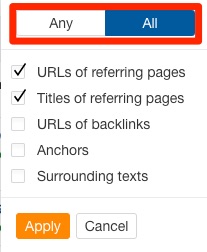
To loosen your requirements, select any.
To help weed out potentially irrelevant results, select all.
If your competitor is getting links from such pages, chances are it would make sense for your website to be listed as a resource too. Learn more in this video:
You could also search for words and phrases like “guest post” or “written by” in the anchors or surrounding link text to find guest post opportunities.
Or, alternatively, look for /author/ in the URL of referring pages for a competitors homepage.
If your competitor is a guest author for a particular website, then you know they’re open to accepting guest posts. More importantly, you know they’re open to receiving guest posts from businesses like yours.
Some other potential use cases for the search function:
- Find roundups by searching for words like “expert,” “roundup,” “weekly,” “monthly,” etc. in the titles of referring pages.
- Find interview and podcast opportunities by searching for words like “podcast,” “episode,” “interview,” etc. in the URLs and/or titles of referring pages.
- Find backlinks that occurred because an infographic was embedded by searching for “infographic” in any of the targets.
Track down potentially harmful backlinks
Google classes “widely distributed links in the footers or templates of various sites” as a link scheme* that can “negatively impact a site's ranking in search results.”
These are the kinds of links that you should track down and disavow.
To help find them, make sure the Backlinks report is set to “Group similar” mode, add a “dofollow” filter, and then sort by the Similar column from high to low.
This will show backlinks with the same or similar anchor and surrounding text—which are often sitewide links.
Hit the caret on any suspicious-looking websites (i.e., the sites from which you wouldn’t expect to have this quantity of backlinks).
You should be especially worried if these links use keyword-rich anchors, like so:
Google states that such links are manipulative and are a violation of their guidelines.
If the site you’re reviewing is already in your Ahrefs Dashboard, then you can easily add offending web pages or domains to your disavow file. Just select them and hit “Disavow Domains” or “Disavow URLs.”
This disavow file is accessible via the Dashboard.
IMPORTANT. We only create the disavow file. You will still need to submit it to Google manually. We also don’t recommend disavowing links—and certainly not entire domains—unless you’re confident that said links are harmful. If you’re in any doubt as to the quality of links from a particular website, always consult with an expert before disavowing.
Learn how to build more backlinks
Check out some of the articles below from the Ahrefs blog and our YouTube channel:
- 9 EASY Link Building Strategies (That ANYONE Can Use)
- How to Find Backlinks (That You Can Replicate)
- How to Get Backlinks: 7 Tactics That Don't Require New Content
- Guest Blogging for SEO: How to Build High-quality Links at Scale
- A Simple Guide to Turning (Unlinked) Brand Mentions into Links
- A Simple (But Complete) Guide to Broken Link Building
- Link Reclamation: How to Easily Find (and Reclaim) Lost Backlinks
- Backlink Analysis and Link Building with Ahrefs [VIDEO]
- Link Building Tutorials (Step-by-Step) [VIDEO]
Joshua Hardwick is the Head of Content at Ahrefs. He's been involved in SEO for 11 years and specializes in link building and outreach. Before working for Ahrefs, Joshua ran an SEO business providing link building and consultancy services.
His work has been referenced by many well-known publications including The New York Times, TechCrunch, The Independent and The Verge, and he's spoken at some of the industry's largest conferences including BrightonSEO, Digital Marketer Skill Share, Digital Olympus, and Benchmark Search.
Your weekly marketing’s must-reads
Join 284K marketers for weekly news, useful reads, industry updates, and the memes you didn’t know you needed.
Explore what’s inside the newsletter →